
Turning the AI tools off
Your organisation can turn the AI tools off for everyone, keep them on for everyone, or leave the choice to each member. The organisation’s setting always wins.
What it is
The AI tools are AI polish, AI photo analysis, Talk through a room, the AI executive summary, Draft with AI (summaries, the scope of survey and stage letters) and photo code suggestions. When they’re off for someone, they disappear from the portal and from the field app (version 1.2.4 or later), and the server refuses them too, so an older app or a direct call can’t get round it.
Smart Build, templates and dictation stay, as they don’t use AI. Text the AI has already written stays where it is, and you can still edit it.
Which setting wins
The first of these that sets it wins:
- AI tools for your team, under Settings → AI. Off for everyone or On for everyone always wins.
- The member’s own AI tools setting, under Settings → Members & seats. It’s used only while the organisation leaves the choice to each member.
- Otherwise the AI tools are on.
Either way, the AI tools only work once your organisation has connected an AI provider. With no provider, they’re off for everyone.
How to do it
For everyone
- Open Settings → AI.
- Under AI tools for your team, choose Off for everyone, On for everyone, or Each member’s setting. It saves as soon as you choose.
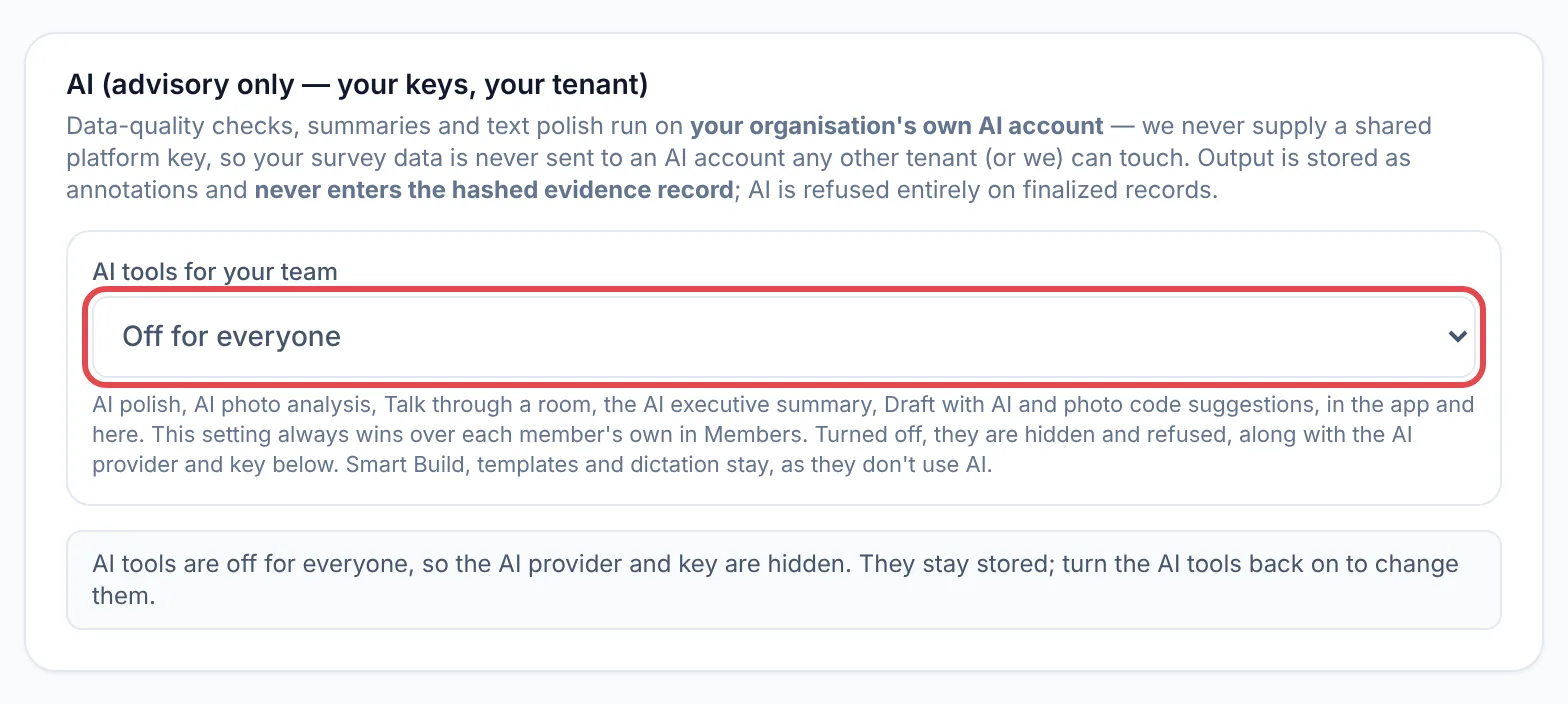
Off for everyone also hides the AI provider and key on the same page. The key stays stored, so turning the AI tools back on brings everything back without entering it again.
For one person
- Open Settings → Members & seats.
- On the person’s row, set AI tools to AI tools off or AI tools on, or back to AI tools: default (on).
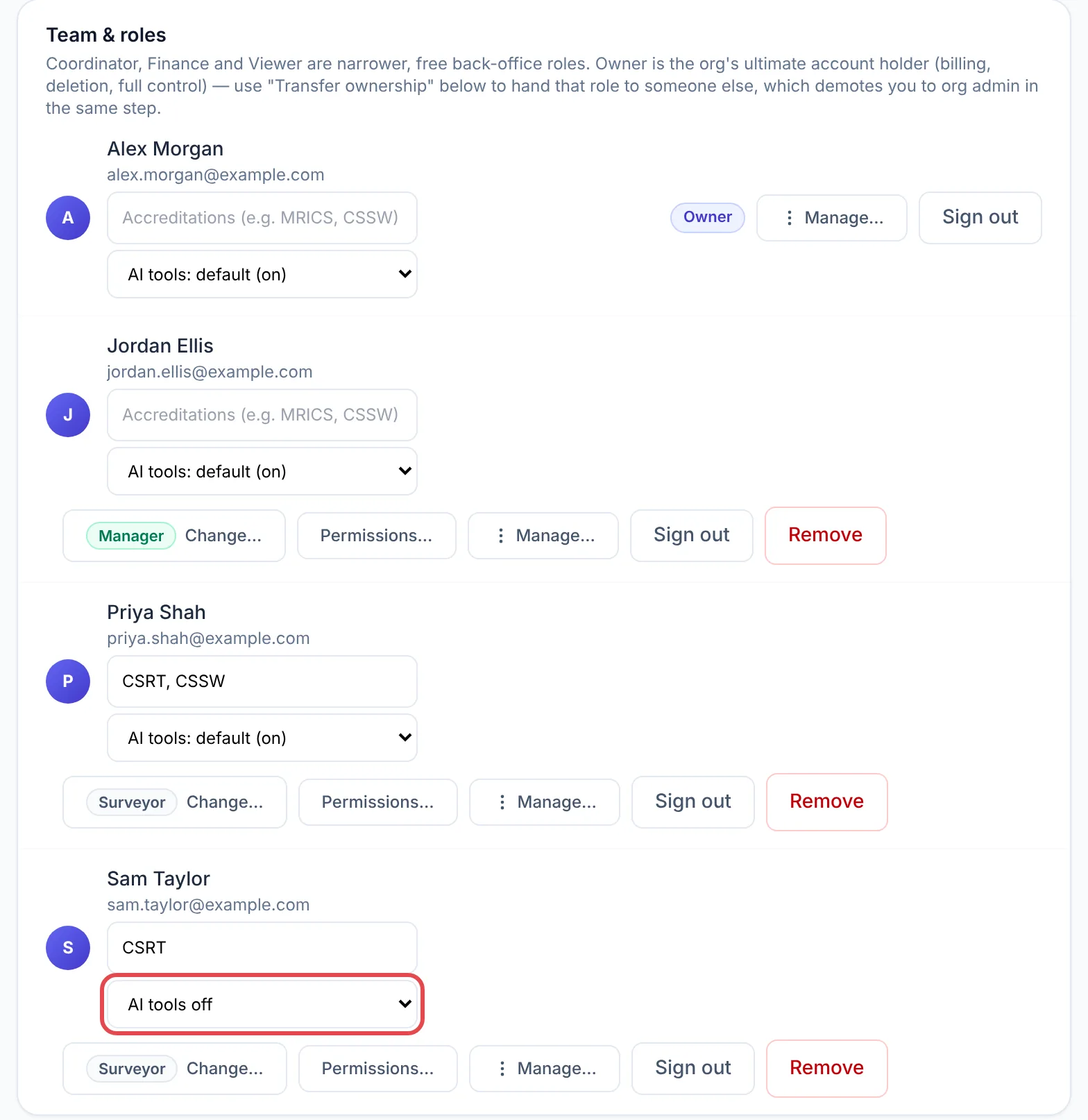
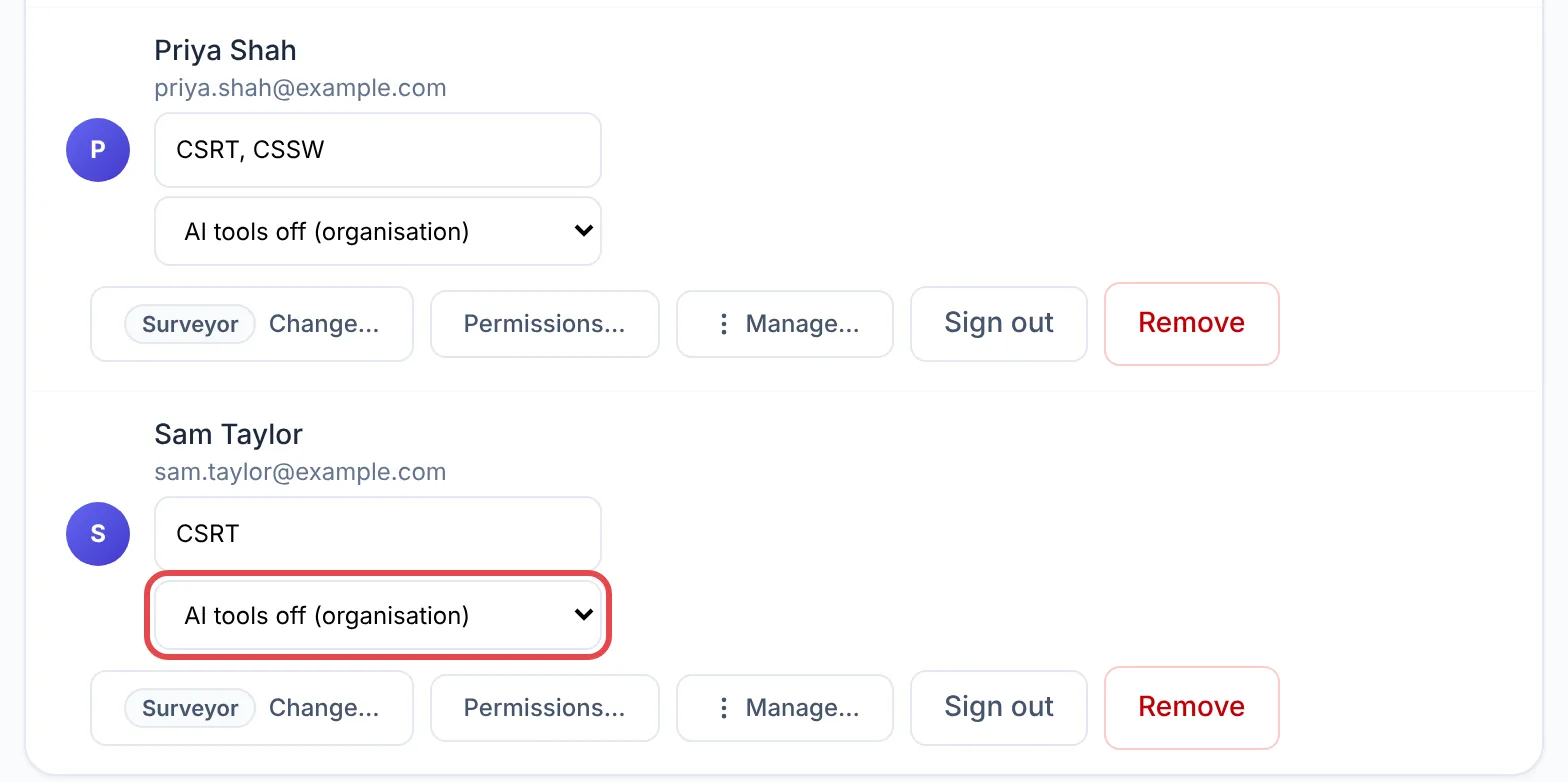
Managers, organisation admins and the owner can set a member’s AI tools. Only the owner can change an admin’s or the owner’s own. While the organisation has chosen on or off for everyone, each member’s control is locked and shows the organisation’s choice.
How it integrates
- A change takes effect straight away in the portal, and in the field app as soon as it’s online.
- Every change is recorded in the audit log, with who made it.
- Turning the AI tools off doesn’t change your AI provider settings or custom prompts. They apply again when the tools come back on.
Common problems
- One person has lost the AI tools but nobody else has. Check their row in Settings → Members & seats: their AI tools may be set to off.
- I can’t change a member’s AI tools. The organisation has chosen on or off for everyone, which locks it, or you need a manager, admin or owner role. Only the owner can change an admin’s.
- An older field app still shows the AI buttons. The server refuses them with “Your organisation has turned the AI tools off”. Update the app to 1.2.4 or later and the buttons go.
- On for everyone, but there are still no AI buttons. Your organisation hasn’t connected an AI provider yet. See Connecting your AI provider.
Related